In the Fielddesk application there are several options to monitor the efficiency and use of your fleet. The concept of fleet management is very broad. In this chapter we inform you in this chapter in what areas Fielddesk can play a role in the management.
Fuel consumption
Fuel consumption figures are usually based on mileages entered manually by employees after fuelling the vehicle. Practice has shown us that to a large extent this is entered inaccurately or not at all. The litres fuelled are registered automatically. Reason to compare these litres to the automatically generated distances, registered by the vehicle system of Fleet Complete. Through the application 'fleet management' we offer you the option to enter/import the fuelled litres, often digitally supplied to you by your fuel supplier, and match these to the distances that are available there (see also chapter Interface with other software applications).
The only thing that is necessary for this is that we are periodically given the digital fuelling information: date, time, registration mark, litres fuelled. Other information as place of fuelling and amount paid is desirable but not necessary.
With Travelcard we already have an automatic interface. You only have to authorise them for the fact that the mentioned data is made available to us. Without effort from your side, fuelling details are periodically entered into Fielddesk. An interface with another supplier is very well possible. If this supplier however is not prepared to set up an automatic interface with Fielddesk, it will be necessary for you to periodically take action (you should periodically make available a file with the necessary data).
Fielddesk has a number of columns in its reporting tool FieldLog that allow more of an insight into the fuelling actions and the fuel consumption of your vehicles. The columns underneath (column group fuel) are available in several report categories if you have purchased the 'Fleet management' application.
Fuel stops | If you would like to see all fuelling actions in the trip reporting, filter this column on 1. A sum of the total number of fuelling actions that have taken place in the selected period |
Litres | The number of litres fuelled in the selected period |
Euros | The number of euros fuelled in the selected period |
Avg. Euro/litre | The average number euros paid per litre (over the whole registration period) |
Km/litre | The consumption in number of kilometres driven per litre (over the whole registration period) |
Litres/100km | The consumption in number of litres per 100 kilometres driven (over the whole registration period) |
Euros/km | The average number of euros paid per kilometre (over the whole registration period) |
The figures displayed are calculated over the whole period; therefore averages are displayed that are based on the whole period for which data on fuelling actions is available.
Emission
Nowadays there is a lot of attention for the emissions of harmful substances, like CO2 (carbon dioxide, greenhouse gas), NOx (Nitrogen) and PM10 (fine dust). Because your Fleet Complete system automatically registers the kilometres driven and it is known for each type/model of a vehicle what the emission per km is, the total emission can easily be calculated. It is important that you enter the emission per category on vehicle level. These fields are not available in Fielddesk by default, but you can create these as vehicle field yourself (Manage vehicles and employees). Next you can create new columns in a new/existing report. Columns that form a multiplication of the 'distance' and 'emission' (Reports (management by exception)).
The CO2 requirements set in Belgium are more in the context of use of the vehicle by multiple persons. If a vehicle is used insufficiently for 'carpooling' then extra tax (CO2 tax) should be paid over it. In its reporting Fielddesk has a number of columns available that give more of an insight into the use of your vehicles.
The columns underneath (column group Co2) are available in several report categories if you have purchased the 'Fleet management' application.
KM solodriver | Number of km of the total distance that someone was a solo driver in a vehicle |
% solo time | Percentage of the total trip time that someone was a solo driver in a vehicle |
Avg. Passengers | Only available on overall level: average number of passengers/car-poolers per trip |
Number of passengers | Only available on trip level: Number of car-poolers/passengers per trip |
Driving analysis
Apart from date, times, locations and distance, the vehicle system of Fleet Complete registers a number of other matters during the trip. We call these events. A number of these events give more insight into the use of the vehicles. For example the deceleration/acceleration, the speed and amount of idling.
Acceleration/deceleration
Upon installation a default value is programmed in the vehicle system for deceleration/acceleration. For passenger vehicles the default norm for acceleration is 18 km/hour per second and the default norm for deceleration 20 km/hour per second. That means that if these norms are exceeded, the corresponding event is registered.
Fielddesk has, in its reporting tool FieldLog, special event reporting that shows you in detail at what moments and at which vehicles certain events have taken place (Event reports). If you would only like to see the deceleration/acceleration events then you can filter the column 'event' on this description. Additionally a number of columns are available in FieldLog that give more insight in the extent to which acceleration/deceleration takes place in your vehicles.
The columns underneath (column group driving behaviour) are available in several report categories if you have purchased the 'Fleet management' application.
No. accel/decel | the number of times that the event 'acceleration' or 'deceleration' has been registered in the selected period |
Max. accel | the maximum acceleration that has taken place (in km/hour per second) in the selected period |
Max. decel | the maximum deceleration that has taken place (in km/hour per second) in the selected period |
Acc/dec value | Only available on event report level: the value of the acceleration/deceleration that has taken place (in km/hour per second) |
Speed
The vehicle system generates (at least) every 30 seconds a GPS polling. Then the location of the vehicle is registered and sent to the live map of Fielddesk. On registration of this position the speed at that moment is also registered. This is also an event.
Fielddesk has, in its reporting tool FieldLog, special event reporting that shows you in detail at what moments and at which vehicles certain events have taken place (Event reports). If you would only like to see the speed events then you can filter the column 'event' on this description, you can also filter the column value on for example 'larger than 130'. You then see all moments when a vehicle has driven faster than 130. Additionally a speed norm is entered into the on board computer. This is set to 130 by default. So if one drives faster than this speed, an event 'speed>value' is registered.
FieldLog has a number of columns available that give more insight into the speeds driven by your vehicles. The columns underneath (column group driving behaviour) are available in several report categories if you have purchased the 'Fleet management' application.
Overspeed | The time one has driven faster than the speed norm |
Max. speed | The maximum speed driven in the selected period |
Avg. speed | The average speed driven in the selected period |
Speed | The speed driven at that moment (event reporting) |
Speeding Offenses
FieldDesk offers 2 optional reports in its FieldLog reporting tool which display detailed speeding offenses:
Speeding Offenses
The FieldLog report Speeding Offenses displays all events with a speeding offense larger than 0. A speeding offense will be calculated by comparing the actual speed (registration from black box) with the permissible speed limit. This speed limit is available to Fleet Complete per stretch of road for the complete Benelux. The column speeding offense will be calculated by subtracting the speed from the speed limit.
Not all events from the event log have an actual speed limit. Only in case of a high level of certainty that the vehicle drives on a certain stretch of road, will the speed limit be displayed. This level of certainty of correct stretch of road registration, named ‘probability’, can have a value between 0 and 100. Where 0 indicates no certainty and 100 a very high certainty. The speed limit will only actually be displayed in case of a probability higher than 90.
Speeding Offenses per Trip
The FieldLog report Speeding Offenses per Trip displays all trips that the various vehicles made, comparable to the report Trips per Vehicle. The maximum speeding offense, the duration of the offenses and the amount of excess in percentages will however also be displayed per trip. These speed data will be calculated using the registered vehicle events from the speeding offenses report.
The excess columns contain the following function:
% excess < 10 | The number of times that the speed allowed has been exceeded by at most 10 km/hr / total number of excesses * 100 |
% excess >10 and < 30 | The number of times that the speed allowed has been exceeded by at least 10 km/hr and at most 30 km/hr / total number of excesses * 100 |
% excess > 30 | The number of times that the speed allowed has been exceeded by at least 30 km/hr / total number of excesses * 100 |
Accident
Upon installation a default value is programmed in the vehicle system for deceleration. For passenger vehicles the default norm for deceleration is 20 km/hour per second. Then there is also an event 'accident'. This is an extreme deceleration. For passenger vehicles the default norm for this deceleration is 33 km/hour per second. For lorries the default norm for deceleration is 25 km/hour per second.
Fielddesk has, in its reporting tool FieldLog, special event reporting that shows you in detail at what moments and at which vehicles certain events have taken place (Event reports). If you would only like to see the accident events then you can filter the column 'event' on this description. The event 'accident' is generated on a large deceleration. Next the previous driving registrations (1 each second) with speed are sent as event 'accidentlog'. By retrieving the lines with the event 'accidentlog' in Excel and executing the value 'speed' as a line diagram, you will see an accident graph.
Additionally there are a number of columns available in FieldLog that give more insight in the extent to which the event 'accident' occurs among your vehicles. The columns underneath (column group driving behaviour) are available in several report categories if you have purchased the 'Fleet management' application.
No accidents | The number of times that the event 'accident' has been registered in the selected period |
Idle time
By default we know two types of idle time. The time between two trips (visiting time) and the time there is no speed during a trip (idle). If one stops for more than 3 minutes during a trip, an event 'start idle' is registered. If one then starts driving again an event 'stop idle' is registered. Whether one stops during the trip with the engine running or not, is not made visible. Unless you have a new system (from 2012) of Fleet Complete at your disposal. That is because these systems register a voltage. A combination of no speed and a certain voltage value means that one has stopped with the engine running.
The lines that you can enter in an event report are:
speed=0 and voltage >130 | stop during trip with running engine |
speed=0 and voltage <130 | stop during trip, engine off |
speed>0 and voltage >130 | driving |
Fielddesk has, in its reporting tool FieldLog, special event reporting that shows you in detail at what moments and at which vehicles certain events have taken place (Event reports). If you would only like to see the idle start/end events then you can filter the column 'event' on this description. Additionally FieldLog has a number of columns available that give more insight in the extent to which the vehicle stops during the trip.
The columns underneath (column group driving behaviour) are available in several report categories if you have purchased the 'Fleet management' application.
Driving active | The time during the trip that the speed was > 0 |
Avg. Driving active | The average time of the trip that the speed was >0 |
Driving % | The percentage of the trip time that the speed was >0 |
Idle time | This is the calculation of the duration between the events 'start idle' and 'stop idle'. A trip definition has to be created for this. The results can be retrieved in a report of the 'trip definition' category (Event warnings (SMS/email)). |
Fleet management
Fielddesk has a number of key figures from which you can measure how efficiently your fleet is being used. You can also add own key figures by using calculation columns (Reports (management by exception)). The columns underneath (column group analysis) are available in several report categories if you have purchased the 'Fleet management' application.
Trips count | The number of trips driven (ignition on/off) in the selected period |
Visits count | The number of visits (time between two trips within 24 hours) in the selected period |
% visit time | The percentage visiting time compared to the driving time in the selected period |
% trip time | The percentage driving time compared to the visiting time in the selected period |
% active | The percentage of days that the employee/vehicle has been active in the selected period (100% is active for 5 or more days per week) |
Avg. Time/day | The average time that the employee/vehicle has driven per day in the selected period |
Avg. Km/day | The average distance that the employee/vehicle has driven per day in the selected period |
Maintenance
Keeping track of when your vehicles are eligible for maintenance can be done for:
- General maintenance
- Maintenance oil filter
- Maintenance engine
- Maintenance air filter
- Maintenance speedometer
You can do this as follows:
- Create the numeric vehicle fields concerned, the following ‘maintenance’ fields are possible (copy the names exactly as described):
- Maintenance (for general maintenance)
- Oilfilter
- Engine
- Airfilter
- Speedbox
- Deviation
- Next, per vehicle, enter in (one or more) of the fields indicated under 1. a, b, c, d or e the mileage for the next servicing. At Deviation you indicate how many kilometres before reaching the entered mileage you would like to be informed.
- Create a management report at vehicle level in FieldLog (Create a report). Select at least the columns registration, mileage and one or more of the columns:
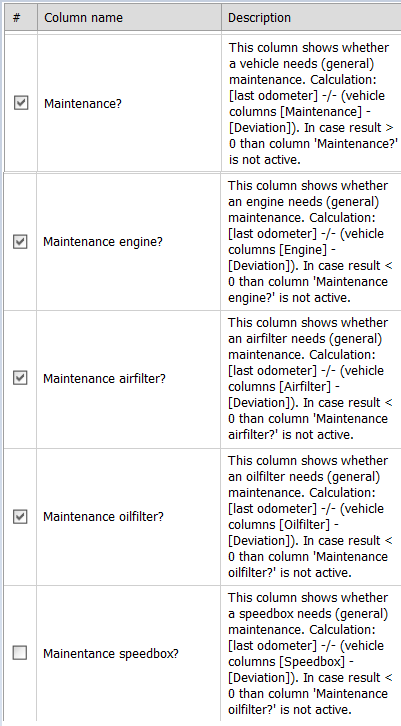
These columns will be filled as soon as the vehicle is eligible for the maintenance concerned.
The calculation is as follows: [last mileage] -/- ([‘maintenance’ column] - [Deviation]).
If the result is greater than 0 the column ‘Maintenance xxx necessary?’ is switched off. If the result is less than 0 the column ‘Maintenance xxx necessary?’ is switched on. You can use this column to filter. Of course you could also schedule this report as email (FieldExport). You will automatically be informed in case vehicles are eligible for maintenance.
Immediately after the service has been taken care of you adjust the ‘maintenance’ column concerned to the mileage for the next maintenance.
A similar solution is also possible for keeping track of lease contracts. This requires some more extended calculation columns. Please contact Fleet Complete’s support department for this at support@FleetComplete.nl.
Such a solution is also possible for keeping track of lease contracts. This requires slightly more extensive calculation columns.
Towing detection
In order to inform you when a vehicle moves without the ignition being switched on, the system uses the events ‘towing detection start’ (no. 54) and ‘towing detection end’ (no. 55). These events are not activated by default. This can be done on request and with the latest systems this can be done by Fleet Complete ‘through the air’.
Through an event report you can request the times concerned and the accompanying location. You can also be informed immediately by text message or email as soon as a towing action takes place.
Labels