Fielddesk uses the map of Google Maps to display the location of the vehicles live. Displaying the vehicles on the live map can be found in the 'FieldMap' module, 'Fleet' menu. The following columns are displayed in the overview:
Registration number | the ID programmed into the registration system by the mechanic |
Blackbox ID | the non-editable ID of the vehicle programmed by the mechanic |
Nickname | the description that you have given to the vehicle |
Group | the group in which the vehicle has been placed |
Status | the status (manually or automatically) assigned to the vehicle |
Realtime | indicates whether GPS data of the vehicle is available so that it can be displayed on the live map |
Show on map | indicates whether the vehicle may be displayed on the map (vehicle data) |
Displaying the vehicles on the live map can be found in the 'FieldMap' module under the 'Fleet' menu.
- Click on the option 'Track vehicles';
- At the lower right of the overview click on the button [Show on map];
- The map appears on your screen.
Lay-out of the map
The map has been built up from a number of overviews. On the left you find the overview (with three tabs) with the list of items that are displayed on the map. Bottom left you find an overview of the detailed information about an item. In the middle you find the overview with the map of Google Maps. The various overviews on the screen can be made larger/smaller through the panels in between. This way you could for example increase the way the overview with map information is displayed.
Hint! It could happen that the map is not built up correctly on your computer. This is most often related to the security of the environment in which you use the internet. Consult your systems administrator for this. It could also be possible that you have to disable the security on the past. This is for example the case when using certain browsers through the HTTPS environment.
List of items
The list of items displays three tabs 'Fleet, POI's and incidents' and a [search] button. In the empty white field in front of the [search] button you can enter a description; with this you can filter items. For example, in the tab 'Fleet', type the name of a vehicle group and click [search]; the vehicles from that group are now displayed in the list and also on the map. With the 'reset' [  ] button you can return to the original screen.
The first tab Fleet displays a list of the vehicles that are displayed on the map. The vehicles are organised per group. Of each vehicle the registration mark and the description is displayed and the last known event with the corresponding date and time. If a field is illegible because it contains too much text, you can go towards it with your mouse. A tooltip then appears with the rest of the text. By clicking on one vehicle in the list, the map will jump to the detail level of that vehicle immediately. The overview is now filled with the detail information as well.
The second tab POIs displays an overview of the created POIs. Of each POI the shape, the name and the group are displayed. If a field is illegible because it contains too much text, you can go towards it with your mouse. A tooltip then appears with the rest of the text. POIs will not be displayed on the map until you have clicked on the 'show/hide poi's' [  ] button at the top of the map. By then clicking on a POI in the list, the map will jump to the detail level of that POI immediately. The overview is now filled with the detail information as well.
The third tab Incidents displays an overview of the assignments created/imported in DeskMap (deskmap). Of each assignment the subject and the priority are displayed. If a field is illegible because it contains too much text, you can go towards it with your mouse. A tooltip then appears with the rest of the text. By clicking on one assignment in the list, the map will immediately jump to the detail level of that assignment. The tooltip with detailed information of that assignment will be displayed on the map.
Detail information
If you select an item in the list or point to/select it on the map, this screen will be filled with the details of that item. The information displayed here can be set by you for vehicles. At the top of the map there is a button 'configure vehicle display' [ ]. If you click on this you can select the fields you desire under the 'vehicle data' menu (these are set fields) and under the 'custom columns' menu (these are fields created by you on employee/vehicle level (vehile columns and employee fields)).
Map
By default all active (no offline status) vehicles are displayed on the map. The map has been zoomed in to the level on which all vehicles are visible. With the 'reset' [ ] button you can always return to this original screen. The map can be displayed as road map, satellite map or hybrid (both) map. This can be set using the corresponding buttons at the top right of the map. On the map you can zoom in or out by scrolling the mouse or using the zoom of the map (buttons top left on the map). With this 'map overview'[  ] button an overview map appears at the bottom to be able to properly assess the location of a far zoomed in area.
Display vehicles
Vehicles are displayed as a symbol to which a label and a little ball have been attached. The [  ] symbol indicates the type of vehicle (vehicle data). This symbol is coloured as follows:
- Black if the ignition of the vehicle is off
- Red if the vehicle has not sent any data to the Fleet Complete server for more than three days (you will receive an email alert about this) (vehicle data).
- Blue if the ignition of the vehicle is on (the vehicle would usually be driving then).
The label [  ] by default indicated the vehicle ID (the colour of the label might differ per country). The content of the label can be adjusted by you, for example to the name of the driver who was last logged on to the vehicle, using the button [
  ] at the top left on the map. The little ball [
  ] indicates the status of the vehicle (vehicle data).
Last trip
When you select a car, you can follow it on a separate screen using the 'start tracking' [  ] button. You can maximise this screen using the button [open new screen] button.
Showing POI's
All created/imported POIs (Interesting locations) will be displayed on the map if you click on the 'show/hide poi's' [ ] button at the top of the map. In het menu corresponding to the button you can indicate whether you would just like to see the POI or also the area. POIs are displayed as a little ball with the name of the POI. The little ball has the colour of the group to which it belongs. If you display the POIs on the map, it could be that the selected area contains too many POIs to display. In that case a cluster is displayed [  ]. The cluster icon now gives you a direct impression of the number of POIs in the area concerned. As soon as you zoom in closer on this area, the corresponding POIs appear. You can also create a POI from the map (manually on the map).
Showing incidents
Assignments are displayed as a drop [ ] with a label [
  ]. The label has the colour that belongs to the priority and displays the description of the assignment. If you select an assignment, a tooltip is displayed.
Planning
There is a limited opportunity in FieldMap to plan. While planning it can help to calculate the distance between two locations. This can be done with the 'measure distance' [  ] button. This can be removed again with the 'clear map' [
  ] button. FieldMap however also has an option to:
- Indicate a location and let the system notify which vehicle is closest to this location. This can be done through the 'zoek' [
 ] button.
 - Click on an assignment with the left mouse button and click on 'dispatch vehicles' within the displayed tooltip. Then a list of vehicles that can perform the assignment appears and which (at top) can reach the assignment fastest. Especially for this application Fleet Complete has developed a desktop application, called DeskMap (Deskmap).
Map layers
Optional is the possibility in FieldMap of importing map layers. A map layer is a collection of a number of coordinates (locations) that you want to present on the map (not being POI) because the locations of the vehicles with respect to these coordinates are interesting for your operations. You can import such as layer in RSS or KML format.
For more information: info@FleetComplete.nl
Routes
As an option, you can create routes in FieldMap.
- Go to the 'routes' option.
- Create a route by clicking on the [toevoegen] button.
- You can connect the various POIs with each other in the right order using the [
 ] button.
A route is a line between at least two POIs (POIs are first created using the Add POI option).
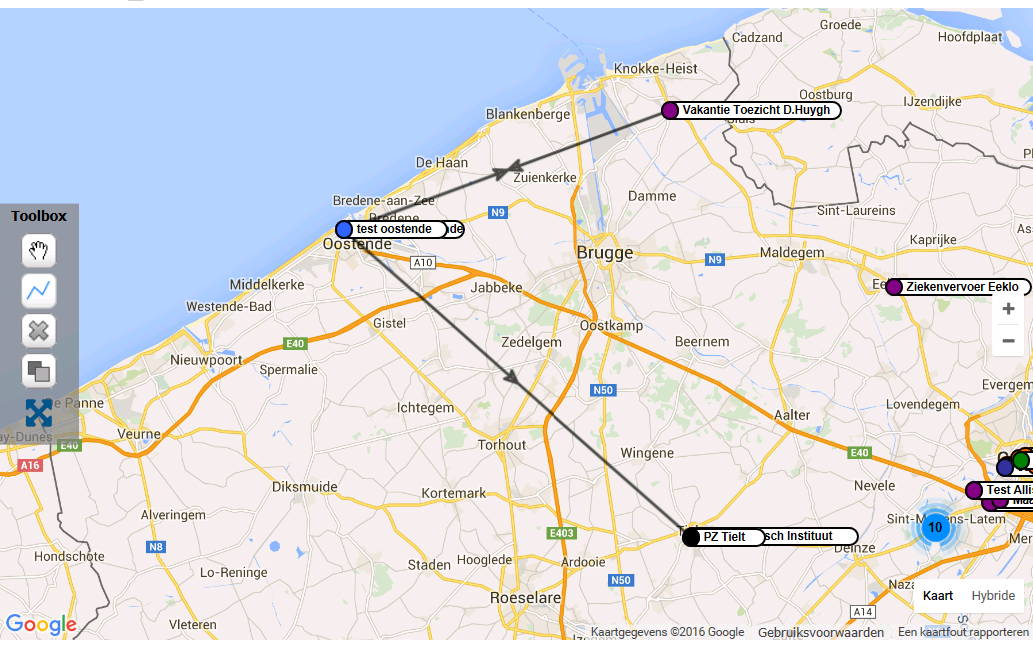
If you use routes, which route best matches is calculated from the trips that 'cross' at least two POIs of a route. Crossing means that one looks to see whether an event occurs within the radius of the POI and whether two events on the line of the route that occur before and after the POI can be 'connected'. Moreover, a vehicle must begin in the first POI of the route or end in a last POI of the route.
These routes are shown in the Management module, 'herberekenen; routes' (recalculate; routes) option. This overview also shows how reliable the calculated route is; a so-called match% (number of ‘crossings’) is displayed. The reliability depends on how many stats (events) of the trip ‘cross’ with the POIs plotted within the route; the number of POIs determined therefore plays a big role here. The most optimal match is sought for each trip: this route is matched.
If several routes occur with an equal number of matches for a trip, the following rules are applied (in the order given) to the remaining routes:
- Firstly, the route with the smallest difference between the distance of the trip and the distance of the route is selected.
If several other options are also still possible:
- The route that is created last is chosen.
No distinction is currently (yet) made in the direction of the route. So a route from A to B is the same as a route from B to A. Nevertheless, they are shown as separate route lines in the route report.
Route report
Trips that are successively assigned the same route number are combined with the result that you can retrieve a route report for each vehicle in the FieldLog. Such a report provides insight into the total driven time and distance of the route with respect to the expected time and distance (calculated based on an as-the-crow-flies distance between the different POIs).
In FieldLog, use the 'Routes' report category and select the desired columns (Create a report).
Recalculate route
If you have created a route and you want to recalculate historical data for the route concerned, then you can do this using the 'herberekenen; routes' (recalculate; routes) option in the Management module.
DeskMap
DeskMap is a local version of FieldMap; the application was made especially to be able to run fast and independent from an internet connection. This application would be advised for intensive use of the map and/or wanting to display the map continuously on a large screen.
Properties of DeskMap:
- faster than FieldMap
- all resolutions possible
- more stable (not dependent on internet) than FieldMap
- a number of FieldMap options are not available, such as: showing the POIs on the map, showing the closest vehicle and showing the route of the last trip
In the current version of DeskMap vehicles can be deployed quickly and efficiently on incidents/assignments from the map. Here you can take into account the location of the vehicle and the location of the assignment (what is the distance between the location of the vehicle and the location of the assignment) and the status of a vehicle (already deployed for an assignment or not). The assignment can also be sent from DeskMap to a tablet that runs FieldMobile. For more information we would like to refer you to the manual of these products. You can contact info@FleetComplete.nl for this.
Labels