The FieldPay module offers you the opportunity to calculate the working hours and payable travel compensation per employee per day; the travel compensation based on the collective labour agreement construction (‘Bouw CAO’) or on the specific rules used by your company. FieldPay also offers the opportunity to edit, where necessary, the details calculated by the application. In this chapter we would like to inform you about the calculation of the working hours. For calculating the travel time we would like to refer you to chapter ‘Automatic travel cost compensation’.
For editing of details we would like to refer you to chapter ‘edit data'.
If you would like to calculate the working hours for your employees, it is important in the registration of the information that a differentiation is made between these working hours and the travel time. To this effect Fleet Complete developed the shift calculation (reference to paragraph shift calculation in hf travel time compensation). The difference between working hours and travel time is calculated dynamically.
Gross Working Hours
In determining the working hours several issues are important:
- Types of hours set
- Use of location
- The definition
Hour Types
If you would like to automatically calculate working and/or perform subsequent costing on projects/assignments, all registrations must be linked to an hour type. Only then is it known how a certain time registration should be paid out. All possible time registration therefore need an hour type. An hour type among other things determines whether the time should be related to a project/assignment or not.
- Go to the ‘FieldPay’ module
- Click on the option ‘hour types’ under the ‘settings’ menu
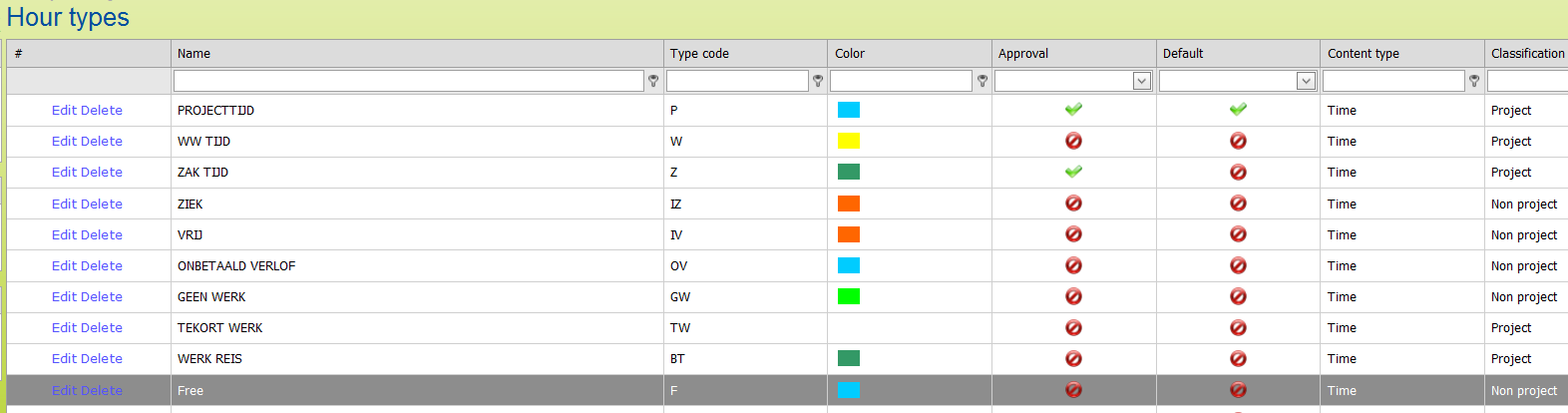
- You could enter a new hour type here or edit an existing one.
- Enter the following:
Classification and Default | Is it an hour type related to a project/assignment or not?
| ||
Name | The name of the hour type | ||
Field type | Determines in what format a time registration with this hour type will be registered. Possible types: time (hh:mm), decimal (number) or Boolean (choice of active/inactive). | ||
Approval required | Determines whether a time registration with this hour type is eligible for approval by executor | ||
Select | Determines with which icon the time registration with this hour type will be displayed in the Time Tracker app | ||
Project | Determines whether indicating a project is a compulsory field at a time registration with this hour type | ||
No. hour type | The unique character that is linked to this hour type. Must match the number of an hour type that is provided by the client (import) | ||
Colour | Determines in what colour the time registration of this hour type will be displayed in the Time Tracker app
| ||
As soon as hour types have been created, all time registrations will be converted into hour types.
Use of Locations
Through regular trip reporting you already have insight into working hours. The visit times between all registered trips are calculated; you know what the time spent is by the employees at the various addresses. By giving the addresses descriptions you can recognise ('Interesting locations'), the picture will become even clearer.
By not only giving the location a name (POI) but also a type (POI type), we can make the distinction between addresses that are considered work and addresses considered to be non-work.
Apart from the outward and return journey, the shift calculations also determines the working hours of an employee. But the accuracy of determining the working hours within a shift is increased by using POIs.
Assigning correct POI
Within this working method it is very important that the (correct) POI is assigned to the location of the employee. There is a chance that your working addresses overlap because the locations of your customers are close together. We can shrink the areas but that then increases the chance that the employee does not park the vehicle exactly within the area. We have two solutions for this.
Priority POI's
You can subdivide the POIs in groups. Per employee group you can then determine which POI groups take preference over others. Determining the priorities of the POIs can be found in the 'Management' module under the 'Employees' menu.
- Click on the option 'Manage employee groups';
- Click on [edit] at an employee group and go to the tab 'Use POI groups'.
- Click on [activated] in order to deactivate a POI group completely (these POI's will not be used in the assigning of the locations of the employees concerned) or indicate a number that determines the priority of the assignment (1 being the highest).
(Digital) task planning
You can plan activities digitally in Fielddesk (or import them from another digital planning). Because we can connect the planned POI (working location) per employee to the actual POI of the employee, we can determine exactly whether the time concerned is eligible to be working time and which time is not. This is the most accurate method.
The Definition
For the complete calculation of the gross working hours it must be determined whether the travel time (commuting) falls within or outside the gross working hours. The indirect hours also fall within the gross working hours. In the report of the working hours you set which definition of gross working time applies to your employees.
Break
From the gross working hours break time has to be subtracted in order to determine the net working hours. The break time can be set per employee group and even per employee.Fielddesk has several options for this:
- The entered break time is subtracted as a whole from the gross working hours.
- The entered break time is subtracted pro rated from the gross working hours (30 minutes break and 4 hours of work, makes 15 minutes break subtraction)
- If less than 4 hours are worked, only 25% of the entered break time will be subtracted from the gross working hours.
Determining the break time can be found in the 'Management' module under the 'Settings' menu.
- Click on the option 'Time table';
- Decide whether you would like to set break time regulation per employee group or per employee;
- Per employee group: click on the [edit] button behind the employee group concerned
- Per employee: click on the [+] button in front of the employee group concerned and then click on the [edit] button in front of the employees concerned. The setting 'default timetable' is deactivated if the employee settings are set differently from the employee group settings.
- The opened screen displays 3 tabs. In the first tab 'General' you enter the number of minutes break subtraction per day and the desired regulation at the bottom of the screen.
- Click [update] to confirm the settings
Pay attention!
The'break time regulation' should be activated to calculate the 'worktime (net)'.
Contract hours
Contract hours are the hours that have to be paid to the employee as base hours, based on the employment contract. You can set these per employee (group). Setting the contract hours can be found in the 'Management' module under the 'Settings' menu.
- Click on the option 'Time table';
- Determine whether you would like to set the contract hours per employee group or per employee;
- Per employee group: click on the [edit] button behind the employee group concerned
- Per employee: click on the [+] button in front of the employee group concerned and then click on the [edit] button in front of the employees concerned. The setting 'default time table' is deactivated if the employee settings are set differently from the employee group settings.
- The opened screen displays 3 tabs. In the second tab 'Weekdays' you enter the number of base hours per day in the column 'Hours contract' (click on [edit] in front of the line concerned and then on [update]).
- Click [update] to confirm the settings
Working hours (net)
Net working time is calculated by subtracting the break time from the gross working hours. Additionally the Indirect hours have to be added to this.
Offsetting travel time with underutilisation
In addition to working hours a travel time compensation is often paid as well (for the calculation of the travel time compensation we would like to refer to chapter 'Automatic travel cost compensation'). If somebody works less than their contract hours then we can offset the payable travel compensation against these underutilisation hours (the time not worked enough).
Setting this option can be found in the 'FieldPay' module under the menu 'Travel time settings’.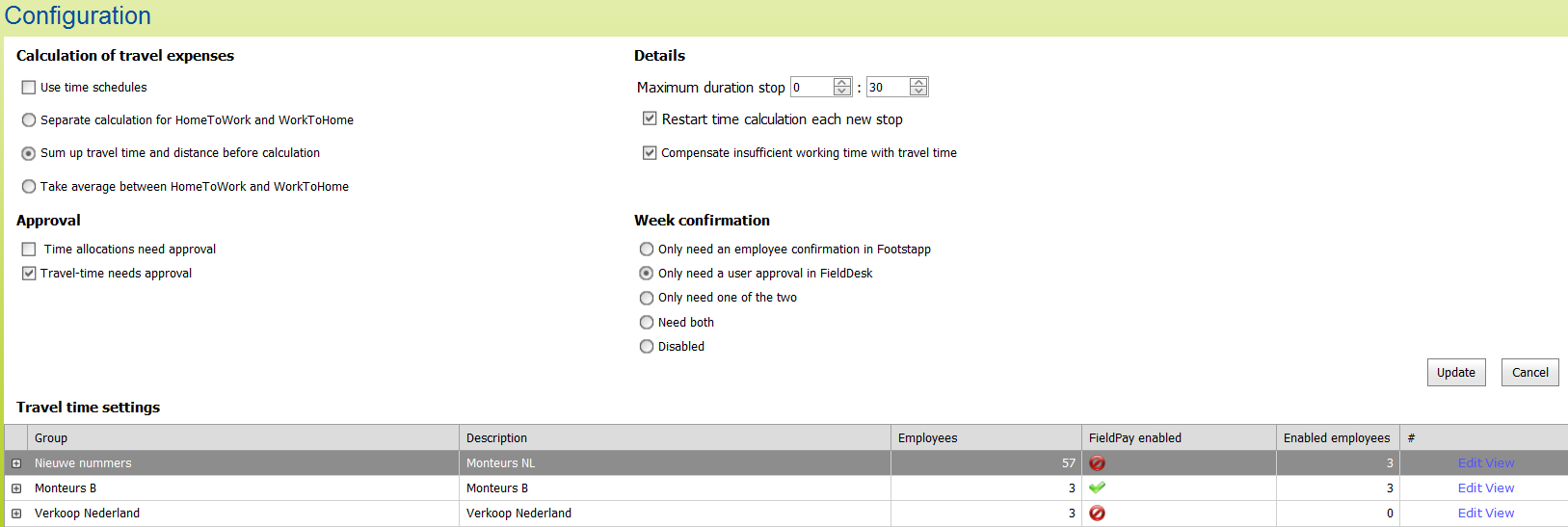
- Click on the option 'Settings travel time’;
- Indicate at 'Compensate time not worked enough with travel time’ whether you would like to offset with time not worked enough.
The time not worked enough, will be displayed, if it has been set up correctly, in the column ‘underutilisation hours’.
In FieldLog you can add, in the FieldPay reports, the column ‘Travel time (net)’ (column group ‘Travel time (FPay)’). If the column underutilisation has been filled then the column ‘Travel time’ will be subtracted by the number of hours, minutes. This results in the column Travel time ‘(net)’.
Indirect hours
Indirect hours are hours that are unrelated to assignments of projects. They can be present hours, for example meetings, courses. But they could also be absent hours, for example illness, holidays. They become available in FieldDesk if you plan these (or import them from a planning) in FieldDesk.
You can create the various occurring indirect hours as hour types in the 'FieldPay' module (from version 1.37) under the menu 'Hour types’.
- Click on the option 'Manage hour types';
- Click on [add];
Here you can create a new hour type. Indicate at least the name and whether it is a paid or unpaid hour type.
Overtime
In order to be able to determine the overtime the contract hours and the net working hours have to be known. If 'net working hours minus contract hours >0' then the difference is the number of overtime hours. If 'net working hours minus contract hours <0' then the number of overtime hours is 0. Insight into overtime hours can be provided on a daily, weekly or monthly basis. In the last two cases the setting for that should be activated. Setting the calculation of overtime hours per week/month can be found in the 'Management' module under 'Settings' menu.
- Click on the option 'Time table';
- Decide whether you would like to set break time regulation per employee group or per employee;
- Per employee group: click on the [edit] button behind the employee group concerned
- Per employee: click on the [+] button in front of the employee group concerned and then click on the [edit] button in front of the employees concerned. The setting 'default timetable' is deactivated if the employee settings are set differently from the employee group settings.
- The opened screen displays 3 tabs. In the second tab 'Weekdays' you indicate at the parameter 'compensate overtime and 'less work' in other day within the period' whether you would like the calculations of the overtime hours per week/month.
- Click [update] to confirm the settings
Reporting
The final calculations can be retrieved in the FieldLog module. For reporting on travel time and working hours, a special category of reports is available, the FieldPay reports. Here you can retrieve the various columns per day/week/month. (Reports).
This can be done as follows:
- Start the FieldLog module;
- Select a FieldPay report to which you would like to add FieldPay columns;
- Go to the menu 'manage overviews' and choose 'select columns’;
- Click on the group 'travel time (Fpay)' and activate the columns you want;
- Click on [ok] once the settings are as you would like them to be.

Among others the following columns are available:
Start working time | Start of the gross working hours, in hh:mm or decimals |
End working time | End of the gross working hours, in hh:mm or decimals |
Gross working time | The working time calculated by the shift calculation, in hh:mm or decimals |
Net working time | The gross working time minus the break time, in hh:mm or decimals |
Contract hours | The number of payable base hours |
Overtime | The number of hours that the net working time is more than the number of contract hours. If that’s not the case, then 0. |
Underutilisation | The number of hours that the net working time is more than the number of contract hours. Underutilisation is never below 0. |
Salary Codes
Through a special configuration it is possible to convert (parts of) calculated shifts into salary codes. Depending on the duration and times you will pay worked and travelled time.
Example:
- You pay 130% for the hours worked on Monday to Friday from 6.00PM – 6.00AM.
- You pay 150% for the hours from Friday 6.00PM – Saturday 11.59PM etc.
In these examples it may occur that a shift has to be split into two parts, e.g. one part at 100% and one at 130%.
This can be set up in a configuration. This configuration will be fully customised to your wishes. The details, calculated on the basis of this configuration, can be retrieved through a special reporting category ‘salary codes’. Please enquire at projectburo@FleetComplete.nl if you would like to receive more information about this.
Labels