Certain data can be edited by you in the system. These edits vary from the editing of the trip type of a trip (from business to private or vice versa) to the editing of project details and corresponding activities. Two parts are discussed in this screen. The first part can be found in the default software of Fielddesk. The second part is released on purchase of the FieldPay and/or FieldProject module.
Edit trip type, employee or project
This method is available in the default software and is especially suitable for editing trip types (business to private and vice versa) if for a longer period of time the red button ('Registration Systems') was used incorrectly. Apart from editing trip types you can also edit the employee of a trip (someone has for example used the key/button of another person for the registration of his trips) and assigning a project number to the trip. Editing these details can be found in the 'Management' module under the 'Fleet' menu ('Edit trip data').
Edit Services
This option is made available in the module FieldPay.
Based on the automatic service calculation this screen displays the calculated times of the employees; the differentiation between travel time and working hours. Additionally this overview contains various options to easily implement changes where necessary.
Weekly Overview
When you open the screen you will see a weekly overview per employee.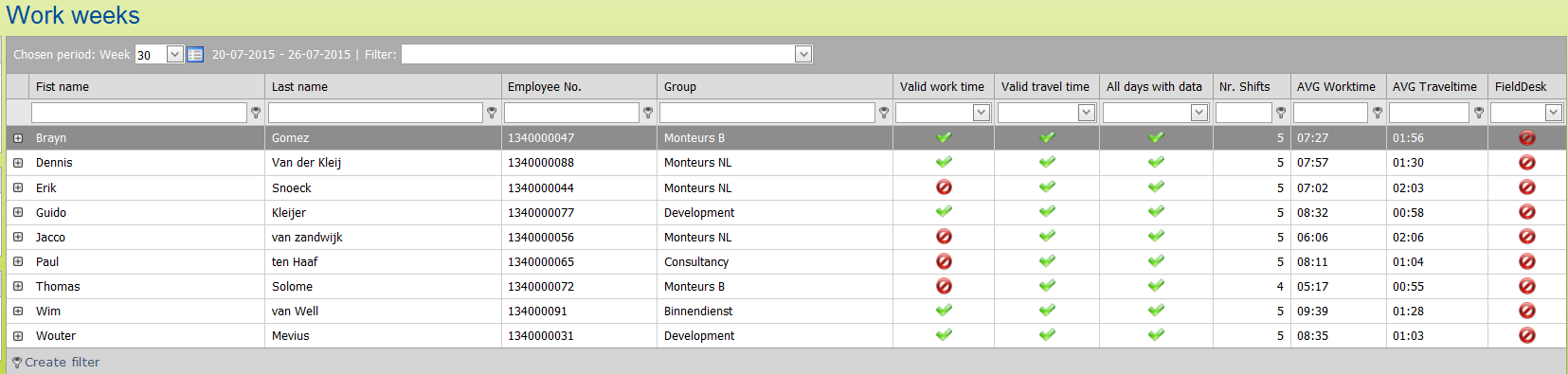
This screen will give you immediate insight into the completeness of the calculated data: whether or not correction is necessary. Three available columns assist you in the assessment:
Valid working hours | The average number of working hours in the week concerned deviates more than 25% from the contract hours. |
Valid outward and return journey | Indicates ‘good’ if the system has calculated both an outward and return journey for every day.* |
Registration + shift | Indicates ‘good’ if a shift has been calculated for every day on which a trip registration took place. |
Additionally the following columns are displayed:
Shifts | The number of calculated shifts is displayed. In principle this looks at the maximum number of set shifts per employee. A shift will always be calculated if a business poi has been visited, even if that causes the maximum number of shifts to be exceeded. |
Average working time | The average working time of the determined shifts |
Average travel time | The average travel time of the determined shifts |
FieldDesk | The week has been approved in FieldDesk |
The empty fields under the columns can be used to filter on data. For example if you would only like to see employees from a certain group.
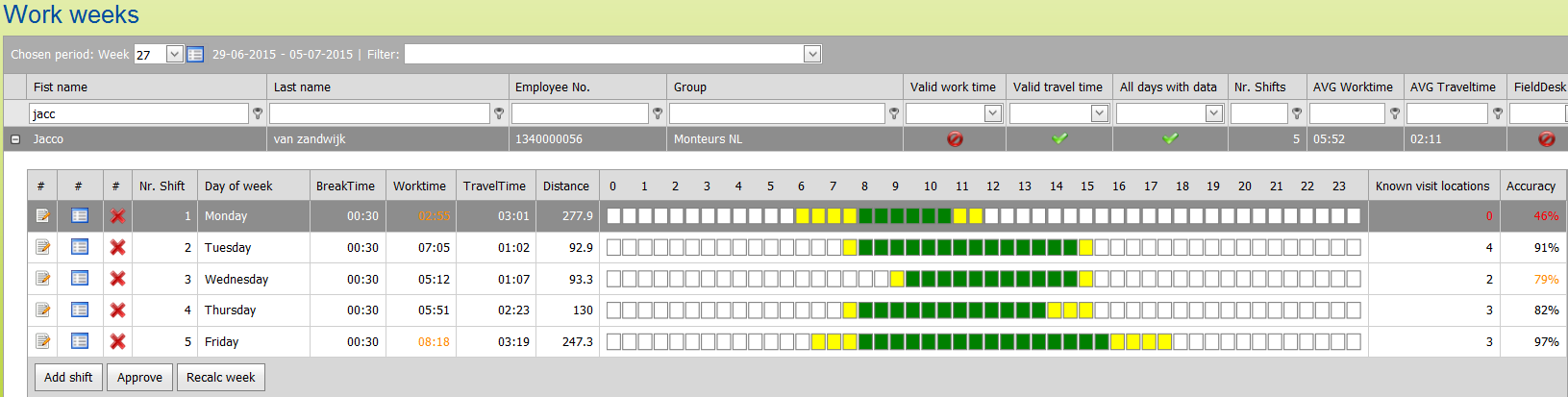
In most cases an incorrect ‘outward and return journey’ indicate that a passenger registered incorrectly on one or more days. In the example below you can see that this is the case on Tuesday and Wednesday. The data can easily be added to so that it can still be processed correctly.
Services per week
If the employee line is expanded through the [+] key, each service will be displayed graphically in a separate line.
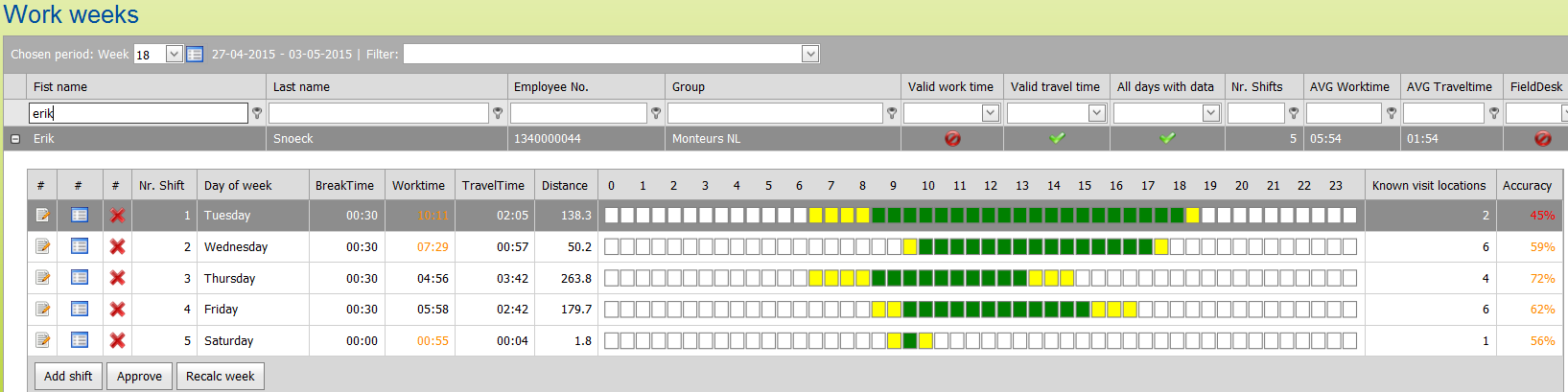
In this services overview you see a calculated service in each line. The following information is displayed:
 | Option to view and/or to edit the service in detail |
 | Option to quickly edit the details of the service |
 | With this you can delete a service in case it has been determined incorrectly |
Service number | The number of the service |
Day | Name of the day of the week |
Working hours | The gross working hours between end of outward journey and start of return journey. A deviation (working hours / contractual hours) of less than 80% will be displayed in black, a deviation between 50%-80% will be displayed in orange, a deviation of more than 50% will be displayed in red. |
Travel time | The total travel time eligible for compensation (so before collective workers’ agreements rules have been applied) |
Distance | The total travel distance eligible for compensation |
0-24 | The graphic display shows boxes of an hour. The coloured boxes give a quick insight in the course of the service. Green indicates calculated service time. Yellow indicates travel time during service time eligible for compensation. |
Known locations | The number of locations during the service that are known as poi’s (business addresses!). If this is 0 it is displayed in red. |
Correctness shift | What is the accuracy of the service (see paragraph ‘correctness shift’ for the calculation). A service with a percentage >80% you will almost surely not have to edit. A percentage >80% will be displayed in black, a percentage between 50%80% will be displayed in orange, a percentage <50% will be displayed in red. |
 | Adding a service if this has not been calculated |
| Approving the whole week, after this there is no longer an option to make any changes! |
| Break | The set break time per day for the employee |
Valid working hours | The average number of working hours in the week concerned deviates more than 25% from the contract hours. |
Valid outward and return journey | Indicates ‘good’ if the system has calculated both an outward and return journey for every day.* |
Registration + shift | Indicates ‘good’ if a shift has been calculated for every day on which a trip registration took place. |
Recalculate week | If you have implemented several changes but would like to restore the original settings, you can use this button to recalculate the week according to original settings. |

Correctness Shift
The overview displays the % accuracy of the calculated shifts. This % tells you to what extent the calculated time registrations may require correction. In determining the % the accuracy is taken as a starting point. It is calculated per shift as follows:
- The deviation in the distance between the outward and return journey. The outward journey, for example, is 50 km and the return journey 55. The accuracy is then calculated as 91% (50/55*100).
- The deviation between gross working time and the contract time (including breaks). The gross working time, for example, is 7.5 hours and the contract time is 8 hours and the break 0.5 hour. The accuracy is then calculated as 88% (7.5/8.5*100).
The total accuracy of the shift in this example is (91+88)/2=89%.
Edit Service
At all times you can edit services. This can be done in two ways:
Direct Edit of Service Times
Through the button you can edit the working hours, the travel time and the distance.
Edit Service Times Through Assigning Trips and Visits
Through the button you will see the detail screen as described under adding a service.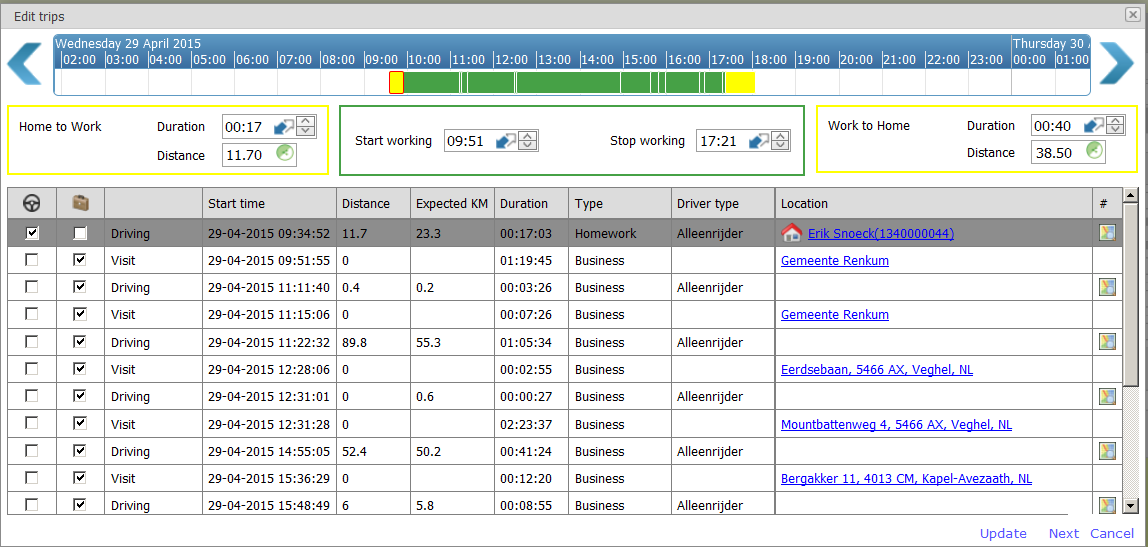
The screen has been built up as follows:
Services per week | Through this bar you can view following services with the [arrow right]. It could occur that there are registrations for the next day that have to be added to the service displayed. By pressing the [arrow right] lines are added to the ‘details’ overview, up to 24 hours after start of service displayed or until at the latest start of the next calculated service. |
Total line | This line displays the totals of the outward journey, working hours and return journey. These details will automatically be adjusted if you edit the details. You can also edit these details in the corresponding columns. Please note that any distance that you may fill in or change in the outward and return journey will be assigned for 100% to a role of the employee in the vehicle (single driver, driver or passenger). |
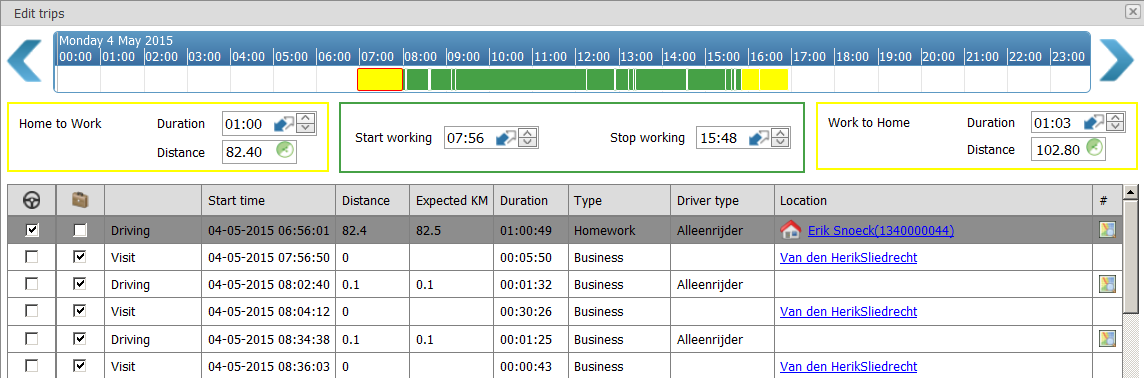
Details | The details display all registration as you know them from the FieldLog reporting; both the trips and the visits are displayed. If the employee starts from the home address in the morning and later that day ends at the home address you will see that displayed with a little house. At the start you see two columns that are important and are sometimes ticked and sometimes they are not.
|
Ok, next and cancel buttons | With the [ok] button you confirm the whole week. This will take you back to the weekly overview. With the [next] button you can easily scroll to the next day. You do not have to leave the screen in order to view/edit the rest of the week. |
 Visits (distance is always equal to 0 and employee type is empty). Those that have been ticked fall under working hours according to the calculation. If these are the incorrect trips/visits, untick these and tick the correct ones. You will see that the details in the total line will be adjusted immediately.
Example:
On Monday no travel time was calculated:
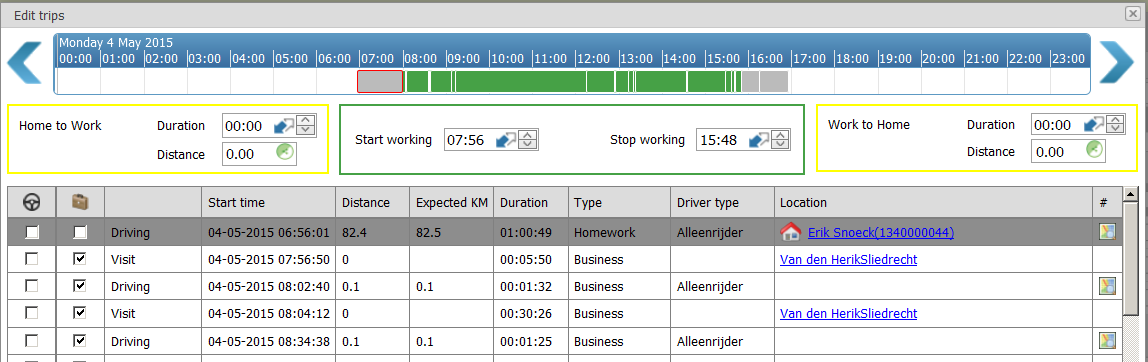
By ticking the trips at  , it will be calculated:
Please Note!
Fleet Complete calculates the shifts dynamically. That means that we automatically determine ‘home addresses’ and work addresses. A value is given to a stop location automatically, we call this a cluster type.
Business stop | A stop that overlaps a business POI (entered or imported into FieldMap) |
Intermediate stop | A short stop (time determined in the travel time settings in FieldPay) during the outward/return journey or within working hours. |
Unknown stop | A stop as of yet unknown to the system (has not been given a property yet) |
Private stop | The stop that counts as start and end of the shift |
In the shift screen we present the proposal of the calculation. These cluster types are adjusted immediately after making changes here. The system remembers your changes and will take these into account in the next calculation.
You might be requested to classify one of the stop locations. You will then be shown the screen below. At the bottom the system indicates how it will treat the location. This can be adjusted through the dropdown menu after ‘location type’.
The system is self-learning and through your actions will become more and more accurate. The goal is to burden you as little as possible with data adjustments.
Whenever you make adjustments, it is important to realise that the adjustment impacts any later shifts still to be calculated and therefore not those that have already been calculated.
Add Service
You can add a service on any day in that week through the  button. Days on which trip details have been registered are indicated separately in the screen with the
  sign:
sign:
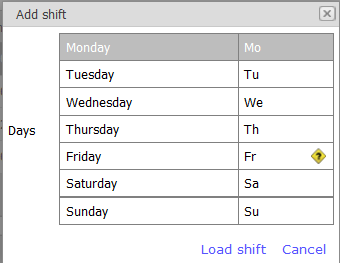
You select one of the days in the screen.
The system then presents a screen in which you can enter details. In case registered details are available, these are displayed.
The screen underneath displays a day that has not been calculated as service but on which a trip registration did take place.
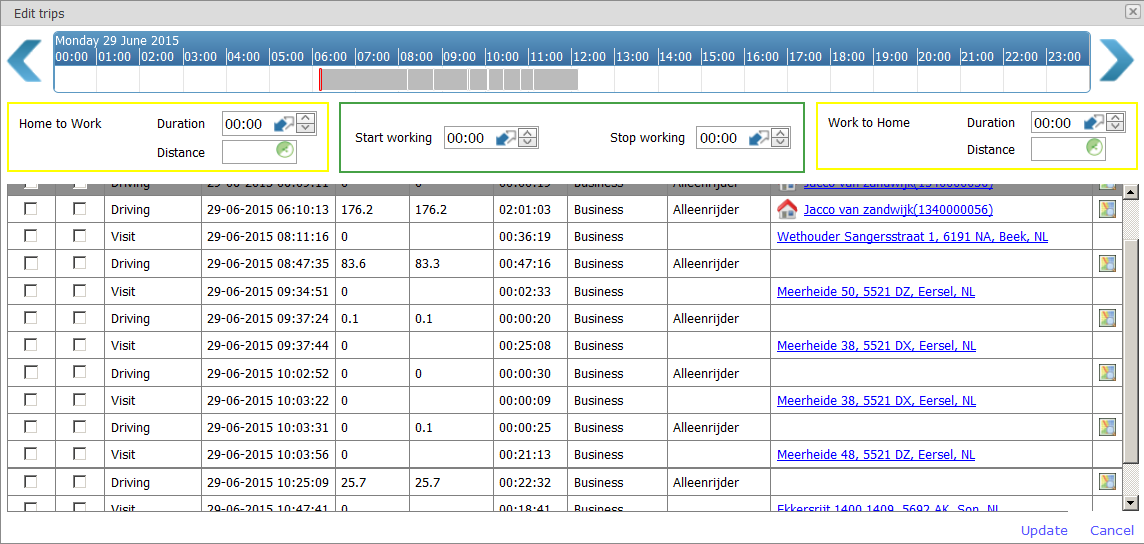
You will now only have to indicate in the two columns on the left which trips belong to commuter travel time and which trips and visits to working hours..
By ticking lines, the screen changes as follows:
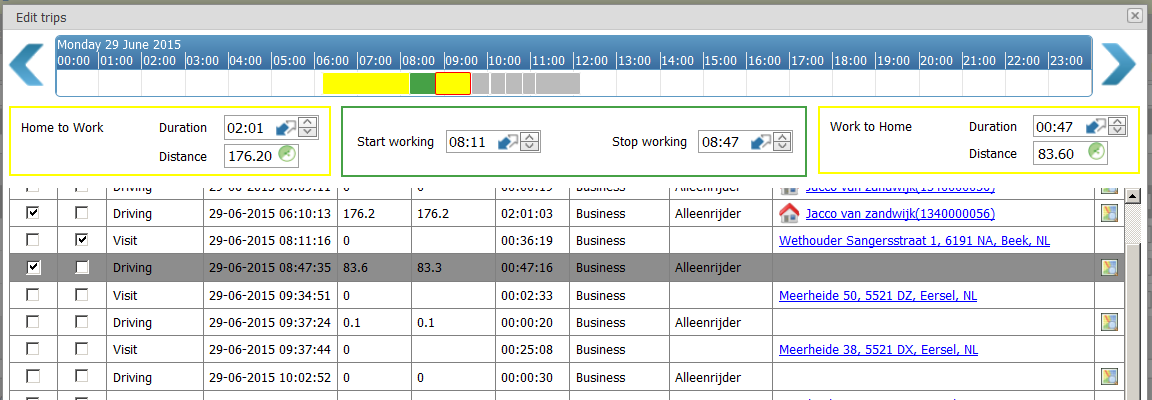
After activating the trips and visits, the total screen is filled automatically with the travel time and distance of the outward and the travel time and distance of the return journey. The start and end working times are also calculated.
You can opt not to select the trips and visits but immediately enter the total travel time/distance and working hours in the total line.
Note: in a service an outward journey and a return journey MUST be entered
The service will be added:
Edit Time Registration
This option is made available in the FieldPay module.
In this screen the working hours calculated by means of the automatic service calculation are allocated to time registrations. Per shift it displays which hours are divided over projects/assignments, over indirect hours, over unknown hours etc. Additionally this overview contains various options to, where necessary, easily process adjustments.
Weekly Overview
When you open the screen you will see a weekly overview per employee.
This screen will give you immediate insight into the completeness of the calculated data: whether or not correction is necessary. Three available columns assist you in the assessment:
Valid working hours | The average number of working hours in the week concerned deviates more than 25% from the contract hours. |
Valid outward and return journey | Indicates ‘good’ if the system has calculated both an outward and return journey for every day.* |
Registration + shift | Indicates ‘good’ if a shift has been calculated for every day on which a trip registration took place. |
Additionally the following columns are displayed:
Week Confirmation | Has the week been confirmed by the employee (refer to paragraph ‘approving’) |
Allocated | What percentage of the working hours per shift has been allocated to projects/assignments |
FieldDesk | The week has been approved in FieldDesk |
FootStapp | The week has been approved in the time app |
The empty fields under the columns can be used to filter on data. For example if you would only like to see employees from a certain group.
Shifts per Week
If the line of the employee is expanded through the [+] button, each shift is displayed separately and graphically on one line.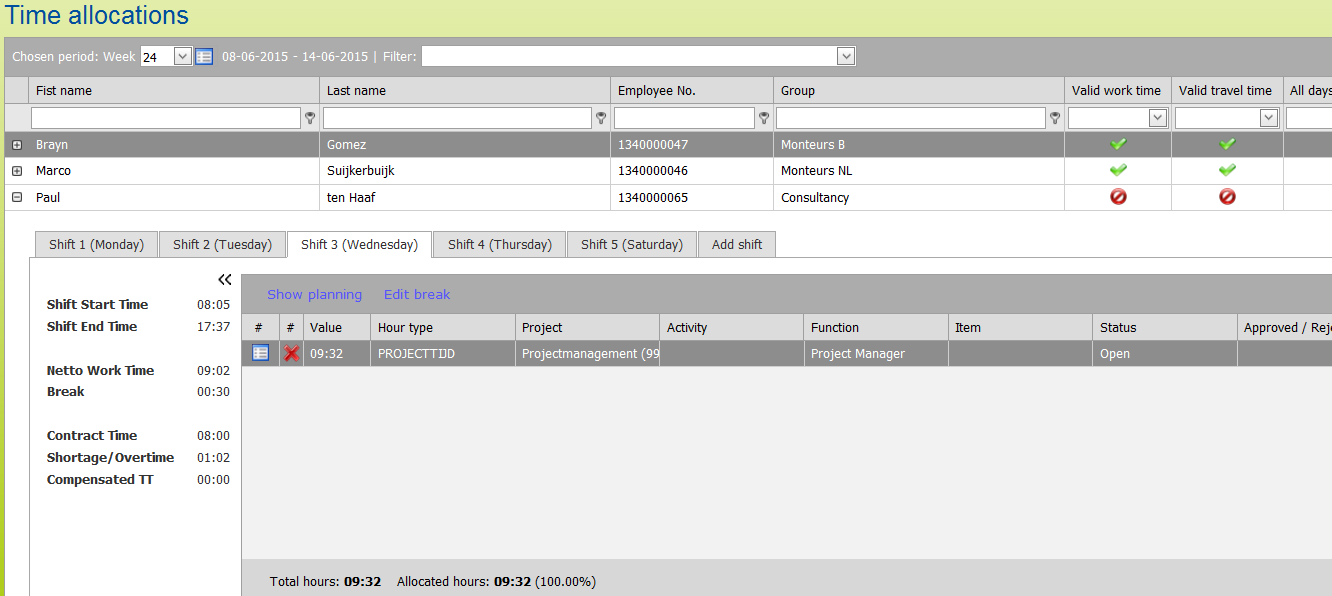
This will display the calculated shift on each tab. On the left hand side totals of the shift and on the right the details with the breakdown of the gross working hours to time registrations.
The total overview displays the following information:
Start shift | The starting time of the working hours |
End shift | The end time of the working hours |
Working hours (net) | The gross working hours minus the break |
Break time | The break time (according to set rules) |
Contract hours | The set number of contract hours for that day and that employee |
Underutilisation/overtime hours | The difference between net working hours and contract hours (negative in case net working hours < contract hours) |
Compensated commute | The calculated travel time compensation (according to set rules) |
The time registration overview displays the following information:
View planning | Option to view the planning of the projects/assignments for that shift |
Edit break | Option to change the set break time for that shift |
| Option to change the data of the time registration |
| This allows you to remove a time registration in case it was determined inadvertently |
Value | Time of number. In case of a project or an assignment time, this value is the travel time and the visited time of the project/assignment |
Hour type | The hour type linked to the time registration which determines how this time is calculated |
Project | The project that is linked to the time registration (this field is filled automatically if the planning matches the execution) or has been selected by the employee through the Projecttime app |
Activity | The activity that is linked to the project (this field is filled automatically if it was planned or has been selected by the employee through the Projecttime app (required field!)) |
Position | The default employee position or the position entered by the employee through the Projecttime app (required field) |
Item | An hour type can have various parts; the part concerned can be selected here. |
Status | The time registration’s approval status. This is particularly important when using the Projecttime app |
Assessed by | The person who assessed the time registration (approved or disapproved). This is particularly important when using the Projecttime app |
Note | The note that is linked to the time registration |
Total hours | The total number of gross hours |
Allocated hours | This indicates 100% in case the full gross working hours have been allocated to projects/assignments |
Button [Approve shift] | Approving shift |
Button [Add] | Adding a time registration if this has not been calculated |
Add Time Registration
You could add a time registration to any shift in that week by using the button . For example this can be useful when certain hours were not registered but they did get performed, like working from home.
The system then displays a screen in which you can enter data. 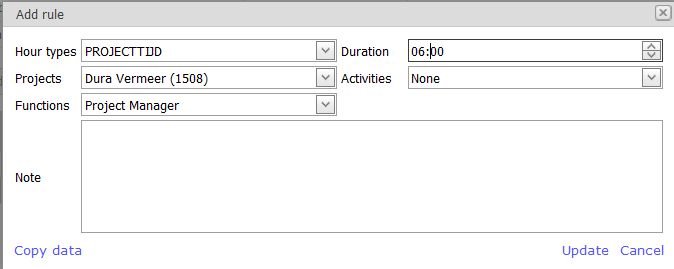
The following data can be entered:
Hour type | Here you can choose from the created hour types |
Project/activity | If you have chosen an hour type to which a project can be linked, you can indicate the project and accompanying activity here |
Item | If you have chosen choose an hour type to which several items are linked, you can indicate the item concerned here |
Position | Here you can enter the position of the employee |
Duration | Here you can enter the duration of the time registration to be added |
Note | Here you can add an extra remark |
Hour Types
A time registration is made of all indirectly planned hours and actual registered hours. A time registration is always linked to an hour type. The hour type determines how the time should be handled in the subsequent calculation and payroll.
It is therefore important to indicate in the system in advance what hour types apply to you. Please refer to paragraph ‘hour types’ in the FieldPay module.
The time registrations displayed in the edit hours screen, concern time registrations that fall within the gross working hours. The time registrations (and therefore the hour types) of the outward and return journeys are known already. That is because these have already been determined in the shift edit screen.
Approving
The system has been expanded with several approval options. However, approval is not compulsory.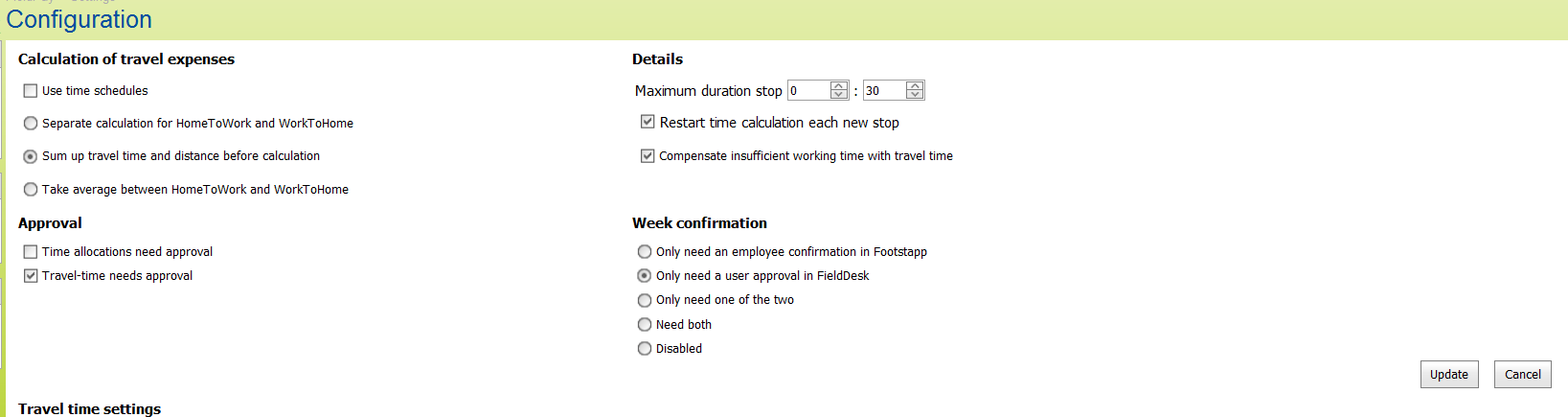
The following settings apply:
Approval | These settings apply if you make use of Fleet Complete’s Projecttime app (Android or iOS). You can let the executor approve the hours entered by the employee. Here you determine whether the executor should do this and if so, for what hours: the hours within working time (time registrations) and/or the commuting travel time. If both settings are deactivated, you opt for the executor not to approve any hours. |
Confirm ‘week approved’ | Preparation of the data for export occurs on the condition of approval of the week. This is done by the employee (through the Projecttime app) or by the logged on user through the ‘edit shifts’ screen. Should you wish for this extra approval to take place, and if so, by whom, then indicate that here. Please tick ‘inactive’ if you would not to have this condition. |
Through the [approve] button you can approve the week in one go. After approval the data can no longer be changed!
Who Corrects?
Data can be changed by users, but also by employees. You determine who is allowed to change data. Two settings determine this:
- Changing of data by users is determined through the authorisation (Users).
- Authorisation to the option 'edit trip details' in the ‘car fleet’ menu of the Management module
- Authorisation for the ‘edit shifts’ or the ‘edit hour registration’ screen in FieldPay module’s menu.
- Changing of data by employees can be done through
- Using the Projecttime app
- Using the employee login FieldDesk (Fieldservice employees)
What has been corrected?
The following columns are available in FieldLog that grant insight into the actions performed per trip. These columns can be added to any required trip reports.
Trip (car) | This column indicates whether trips have been registered by the on-board computer built in to the vehicle. No changes were made to the trip. |
Trip (edit) | This column indicates whether trips were changed or added manually through the correction screen |
Trip (manual) | This column indicates whether trips were added manually |
Should you only wish to have insight into the changed trips then you request a filter of ‘Trip (edit)’ active and ‘Trip (manual)’ inactive.
Labels